Choosing Your Classes
Some studios and gyms publish an open-enrollment schedule with several class slots — think a Tuesday/Thursday beginner class alongside a Saturday open gym. You don't have to see all of them: pick just the slots your profile actually attends.
Open your Subscriptions page from the sidebar. Any schedule that lets you pick classes shows a Choose classes link (or Edit classes, if you've already picked some) next to that profile's subscription.
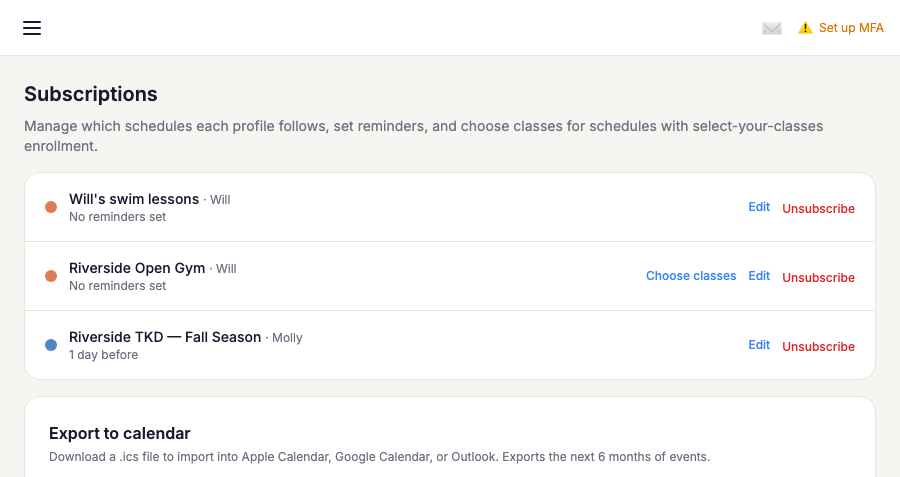
That link opens a checklist of every recurring class slot on the schedule. Check the ones your profile attends — or use Select all classes if they're in everything — and save. Only your selected slots appear on your calendar and generate reminders; special events and schedule announcements still show up for everyone, regardless of which classes you've picked.
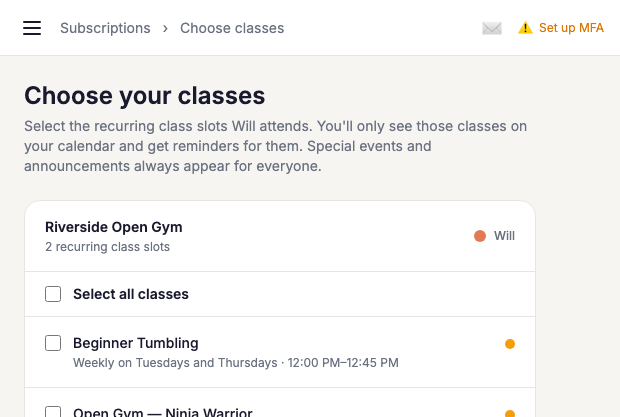
Changed your profile's schedule mid-season? Come back to the same Edit classes link on the Subscriptions page any time — there's no need to unsubscribe and rejoin.
Adding a one-off class
Sometimes a profile's usual class gets disrupted — a closure, a schedule conflict — and you'd like them to attend a different slot on the same schedule, just once, without permanently switching classes. The same Choose classes page has you covered: scroll down to One-off classes and click + Add a one-off class.... Pick the class, then pick a date — only the class's actual upcoming meeting times over the next two weeks are offered, so you won't land on a day it doesn't run (or one that's already closed).
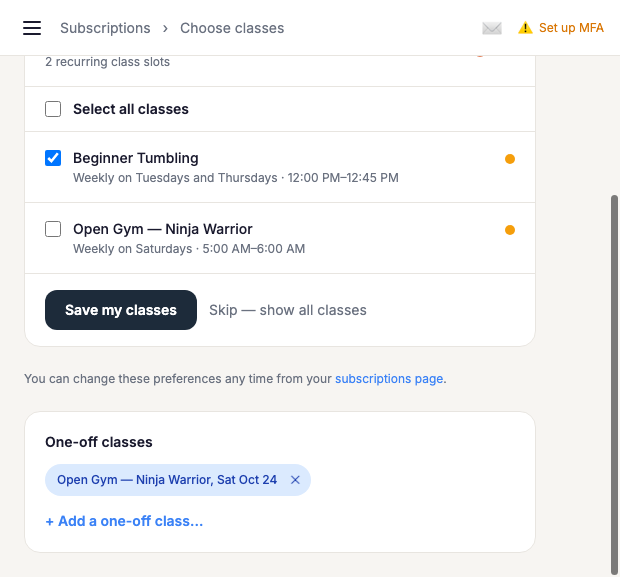
Once added, the one-off appears on your calendar for that single date only — it doesn't change your regular class picks, and you can remove it any time with the ✕ on its chip here, or the Remove button on the calendar event itself.